
Open Claw Setup: Installation & Configuration Guide

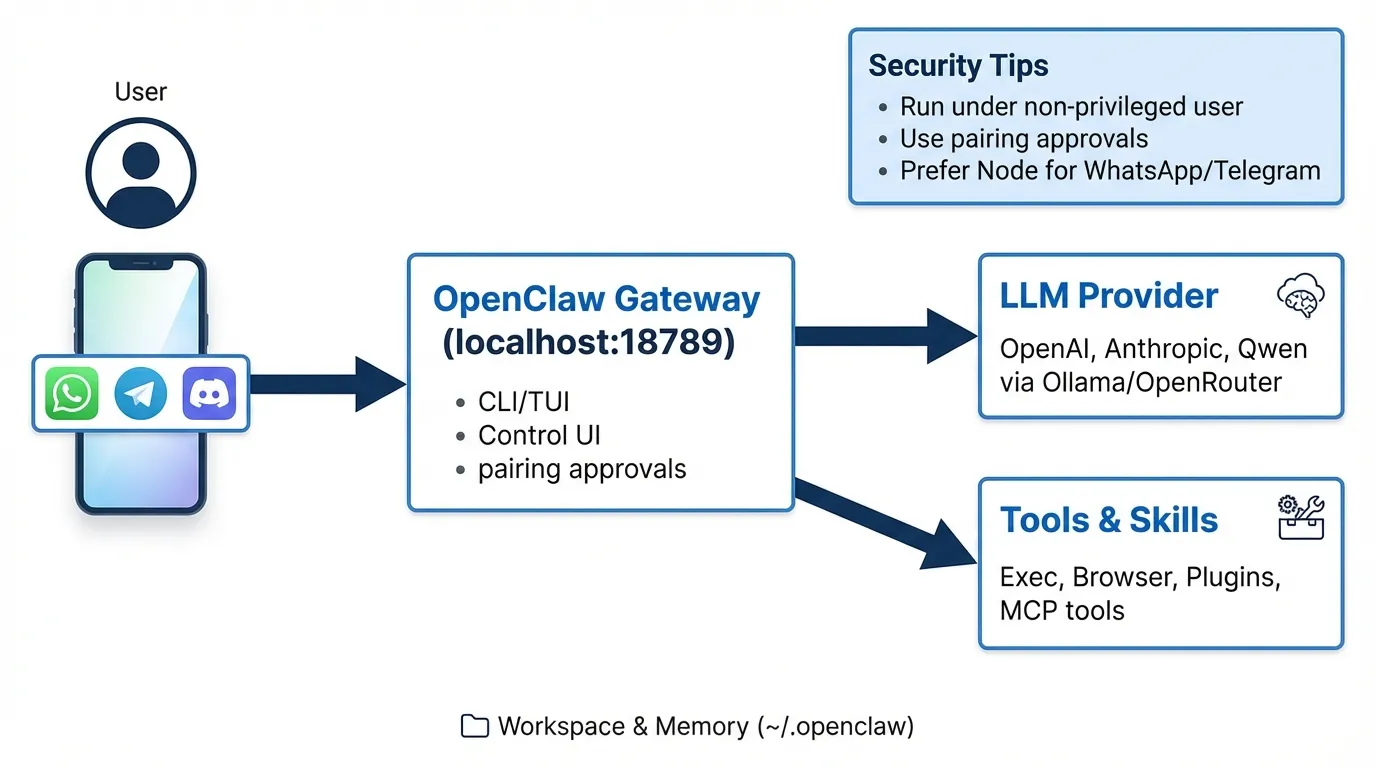
OpenClaw is a locally running AI Agent that can directly operate your computer, manage files, and interact with your system remotely via WhatsApp or Telegram.
🏗️ Architecture Overview
Your Chat App (WhatsApp / Telegram) → Local Gateway → AI Models & Tools Execution
1️⃣ Install OpenClaw CLI
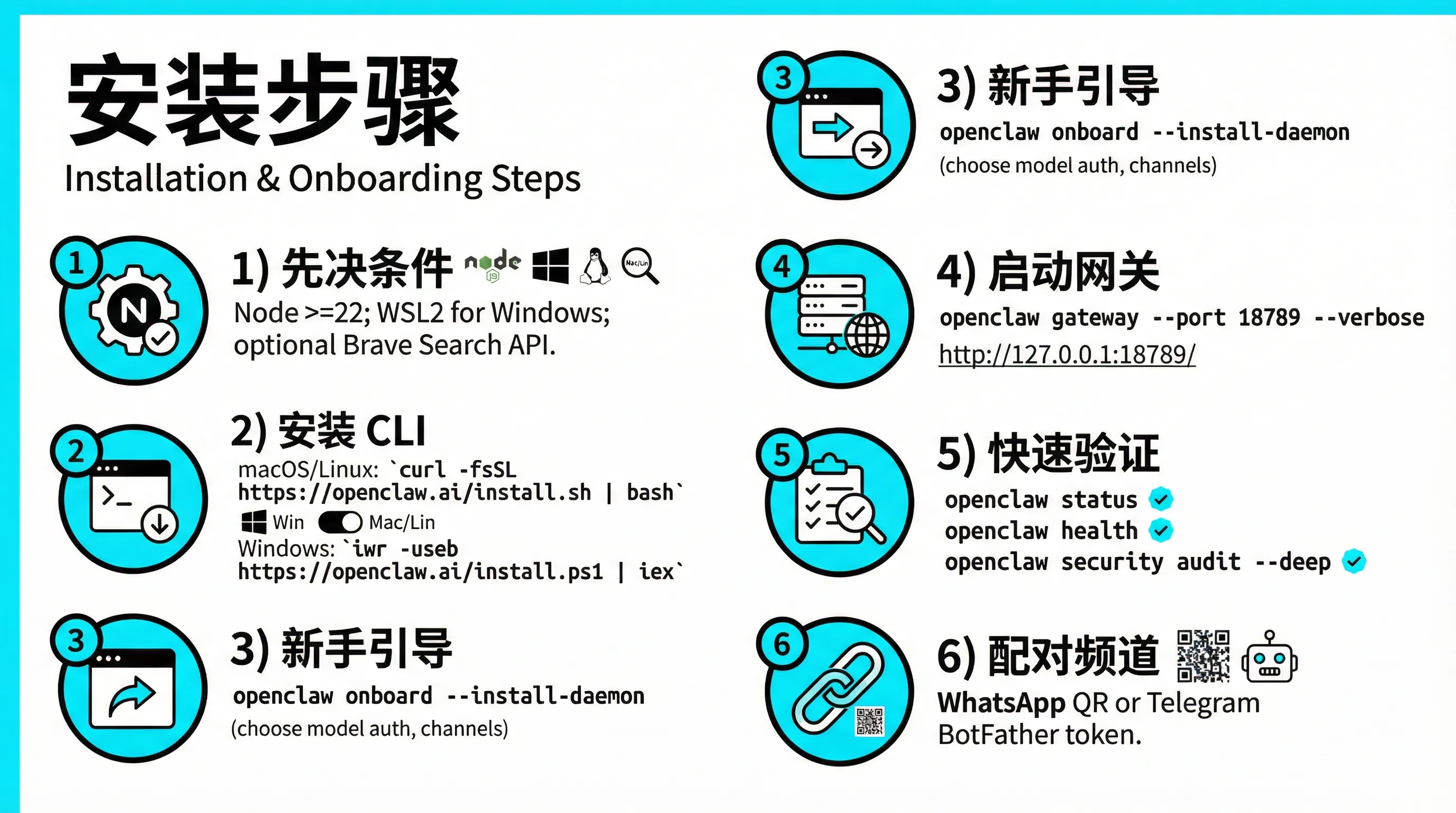
Before starting, please ensure your system meets the following requirements.
Prerequisites
- Node.js: Version ≥ 22
- Windows Users: Must enable WSL2 (Ubuntu recommended)
- Optional:
- (For web search capabilities)
One-Click Installation
macOS / Linux
Windows (PowerShell)
💡 Tip The installation process will automatically detect your system environment and download necessary components. Once finished, the terminal will display Installation Complete.
2️⃣ Initialization (Onboarding)
Run the following command to start the interactive setup wizard:
🔑 Key Configuration Options
3️⃣ Start & Verify Gateway
If you installed the daemon during onboarding, the service will start automatically.
Manual Start / Debug Mode
Verify Status
-
Web Console Visit:
-
Command Line Check
4️⃣ Pair Chat Account
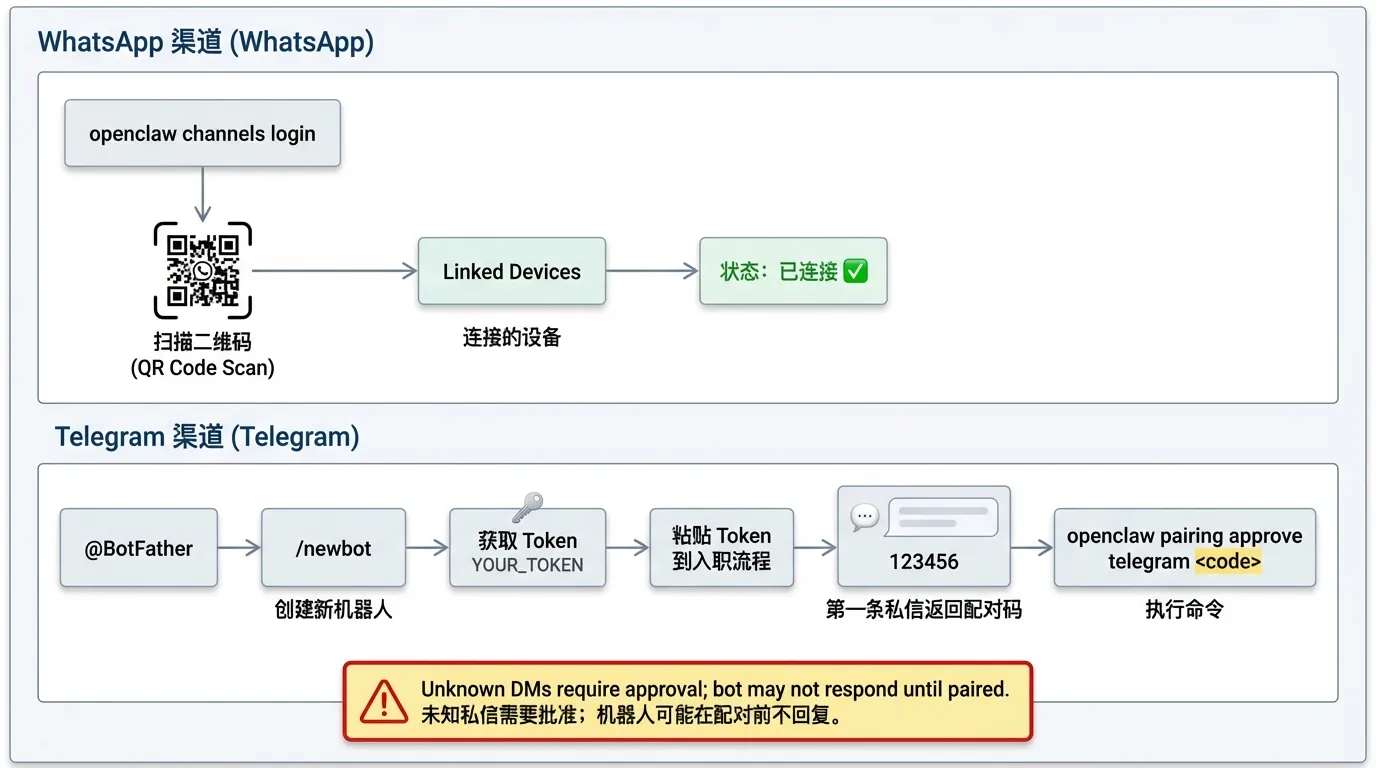
📱 WhatsApp (Scan to Login)
The terminal will display a QR code:
- Open WhatsApp on your phone
- Settings → Linked Devices
- Scan the QR code to finish login
✈️ Telegram (Bot Token)
- Chat with @BotFather on Telegram to get a Bot Token
- Run the configuration command:
🛡️ First Connection Approval (Pairing)
For security reasons, unknown private messages will not trigger any actions by default.
Procedure
- Send any message to your bot (e.g.,
Hello) - View pending approvals:
- Approve the connection:
⚠️ Security Guidelines (Must Read)
🚨 Important Warning OpenClaw has file read/write and command execution permissions. Please use with caution.
- Minimize Privileges:
Do not run as
rootor administrator. - Strict Review: Never approve Pairing requests from unknown sources.
- Human Confirmation: By default, dangerous operations (like deleting files) require secondary confirmation.
- Isolation (Advanced): Recommended to run in Docker or a Virtual Machine.
❓ FAQ
Q1: Encountering EACCES: permission denied?
Reason:
Previously ran with sudo, causing directory permission issues.
Solution:
Q2: Modified API Key but it's not working?
Check Steps:
- Open config file:
- Must restart service after modification:
🎉 Success!
Now, just send a message in your chat app:
"Check what files are on my desktop"
Start your AI Local Automation Journey 🚀